
Quickstart
Connect NexLev MCP to your preferred AI assistant and start analyzing YouTube channels in under 5 minutes. Choose the platform you use below.
Prerequisites
Before you begin, make sure you have:
- Active NexLev account — Free for all users. Upgrade to Pro for higher quota limits.
Via Claude's custom connector
Step 1 — Active NexLev account
Make sure your NexLev account is active before proceeding.
Step 2 — Open Claude Connectors
Go to claude.ai → Settings → Connectors → Add custom connector. You can also open the connectors page directly:
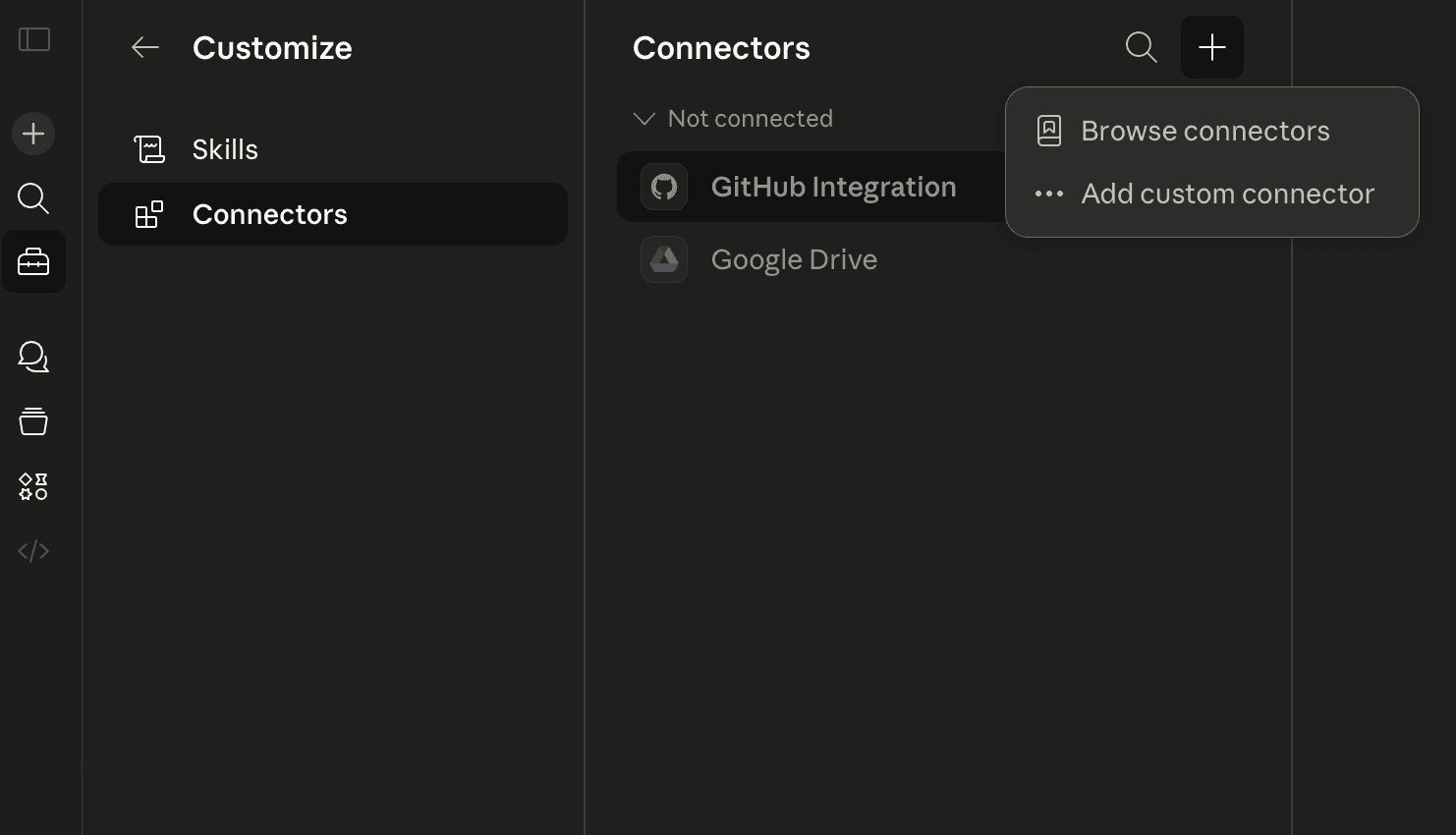
Step 3 — Enter the connector details
Fill in the following information exactly as shown:
NexLevhttps://prod.dashboard.nexlev.io/api/claude-mcpOAuth
Step 4 — Approve the connection
After adding the connector, please click the Connect button and Claude will redirect you to sign in with your NexLev account.
Sign in with the right NexLev account. If you have a paid NexLev plan (Lite, Pro, or Premium), make sure you log in with that account — your rate limits are tied to the account you connect. Signing in with a different account will apply Free plan limits instead.
Step 5.A — Set tool permissions
Go to claude.ai → Settings → Connectors, find NexLev, and click Configure. Then set Tool permissions to Always allow — this lets Claude use your NexLev tools automatically without asking you every time.

Step 5.B — Allow write/delete tools
In the same permissions panel, scroll down through the tools list and make sure you also set Always allow for any write or delete tools (such as Swipe File). These are listed separately and require individual approval.

Free plan limitation. Attempting to use Write and delete tools — on the Free plan, it will return a message prompting to upgrade NexLev subscription.
Step 6 — Verify NexLev is active in chat
Before starting, confirm NexLev is enabled in your Claude chat window. Click the + button in the message bar, hover over Connectors, and check that the toggle next to NexLev is turned on.

No API key needed. Claude.ai uses OAuth to connect directly to your NexLev account. Works on web and mobile — your tools sync across all devices.
What You Can Do Next
Once connected, start using NexLev tools directly inside your AI chat:
Long Form Channel Search
Find 20 long-form channels related to the minecraft niche
Short Form Channel Analysis
Show me 15 viral YouTube Shorts channels in the comedy niche
Keyword Research
Find high-volume, low-competition keywords for cooking content
Content Strategy
What content strategy should I use for a tech review channel with 10K subscribers?
Competitive Research
Compare successful channels in the fitness niche and identify common patterns
Thumbnail Generation
Generate a thumbnail for my video "I Tried Waking Up at 4AM for 30 Days" — match the style of the top productivity channels
Off-Platform Earnings
What does @AliAbdaal sell outside of ads, and which brands sponsor the most finance channels?
Network Research
Which network is MrBeast signed to, and what other channels are under it?
Understanding NexLev Responses
When you use NexLev through Claude, ChatGPT, or Claude Code CLI, you'll receive interactive widgets displaying:
- Channel data — Comprehensive metrics, performance indicators, and growth analytics
- Sortable results — Click column headers to sort by different metrics
- Expandable details — View in-depth information for each result
- Filtering options — Refine results by various criteria
- Pagination — Navigate through large result sets
Pro Tip: Results are interactive! You can sort, filter, and expand channels directly within the chat interface for deeper analysis.
Rate Limits
All limits are per user, per tool, and reset every 24 hours.
Lite and Premium share identical rate limits across all tools. If you're on the Premium plan, the numbers in the Lite column apply to you.
Networks & CMS
CMS tools are available on Lite, Pro, and Premium plans only — Free plan users do not have access.
| Tool & Description | Free | Lite | Pro |
|---|---|---|---|
Content owner lookupget_content_owner | 0 | 5 | 15 |
CMS network searchsearch_cms_networks | 0 | 5 | 15 |
Per user · resets every 24 hours
Upgrade to Pro →With usage credits enabled, calls past the daily limit cost $0.05 each for both tools. See CMS Networks.
Channel Discovery
| Tool & Description | Free | Lite | Pro |
|---|---|---|---|
Long-form channel searchfind_long_form_channels | 10 | 150 | 300 |
Short-form channel searchfind_shorts_channels | 10 | 150 | 300 |
Similar channelsget_similar_channels | 5 | 20 | 30 |
Latest discovered faceless nicheslatest_discovered_faceless_niches | 20 | 150 | 300 |
Faceless channel checkcheck_faceless_channel | 5 | 100 | 300 |
Channel resolverchannel_resolver | 10 | 100 | 500 |
Niche channel searchsearch_niche_finder_channels | 10 | 100 | 200 |
Per user · resets every 24 hours
Upgrade to Pro →Video Intelligence
| Tool & Description | Free | Lite | Pro |
|---|---|---|---|
Similar videosget_similar_videos | 5 | 20 | 30 |
Video searchsearch_videos | 10 | 150 | 300 |
YouTube searchyoutube_search | 50 | 100 | 500 |
Video detailsyoutube_video_details | 10 | 100 | 300 |
Video commentsyoutube_video_comments | 10 | 150 | 300 |
Video transcriptget_video_transcript | 5 | 150 | 300 |
Bulk video transcriptsget_bulk_video_transcripts | 5 | 50 | 100 |
Video subtitleget_video_subtitle | 5 | 150 | 300 |
Bulk video subtitlesget_bulk_video_subtitles | 5 | 50 | 100 |
Channel outlier videosyoutube_channel_outliers | 10 | 50 | 100 |
YouTube suggested videossearch_youtube_suggested_videos | 20 | 150 | 300 |
Viral videos — small channelssearch_viral_videos_small_channels | 20 | 150 | 300 |
Faceless outlier videosfaceless_outliers_videos | 20 | 150 | 300 |
Per user · resets every 24 hours
Upgrade to Pro →Visual Search
| Tool & Description | Free | Lite | Pro |
|---|---|---|---|
Similar thumbnailsget_similar_thumbnails | 5 | 20 | 30 |
Per user · resets every 24 hours
Upgrade to Pro →Visual Video Analysis
| Tool & Description | Free | Lite | Pro |
|---|---|---|---|
Watch YouTube video and askwatch_youtube_video_and_ask | 1 | 5 | 15 |
Watch Instagram video and askwatch_instagram_video_and_ask | 1 | 5 | 15 |
Watch TikTok video and askwatch_tiktok_video_and_ask | 1 | 5 | 15 |
Per user · resets every 24 hours
Upgrade to Pro →Channel Analytics
| Tool & Description | Free | Lite | Pro |
|---|---|---|---|
Channel analyticsget_channel_analytics | 5 | 20 | 30 |
Daily analyticsget_daily_analytics | 5 | 20 | 30 |
Short vs long viewsget_short_vs_long_views | 5 | 20 | 30 |
Geography & revenueget_geography_revenue | 5 | 20 | 30 |
Batch channel metricsget_batch_channel_metrics | 5 | 20 | 30 |
Channel categoriesget_channel_categories | 10 | 100 | 500 |
Channel formatsget_channel_formats | 10 | 100 | 500 |
Channel videosyoutube_channel_videos | 50 | 100 | 300 |
Channel shortsyoutube_channel_shorts | 50 | 100 | 300 |
Channel playlistsyoutube_channel_playlists | 50 | 100 | 300 |
Channel aboutyoutube_channel_about | 50 | 100 | 300 |
Per user · resets every 24 hours
Upgrade to Pro →Monetization
| Tool & Description | Free | Lite | Pro |
|---|---|---|---|
Channel monetization checkcheck_channel_monetization | 5 | 100 | 300 |
Video monetization checkcheck_video_monetization | 5 | 100 | 300 |
Video RPMget_video_rpm | 5 | 150 | 300 |
Per user · resets every 24 hours
Upgrade to Pro →Niche Intelligence
| Tool & Description | Free | Lite | Pro |
|---|---|---|---|
Niche overviewget_niche_overview | 5 | 20 | 30 |
Niche categoriesget_niche_finder_categories | 10 | 100 | 500 |
Niche formatsget_niche_finder_formats | 10 | 100 | 500 |
Niche tagsget_niche_finder_tags | 5 | 100 | 500 |
Per user · resets every 24 hours
Upgrade to Pro →Swipefile
Swipefile is available on Lite, Pro, and Premium plans only — Free plan users do not have access.
| Tool & Description | Free | Lite | Pro |
|---|---|---|---|
List swipefile folderslist_swipefile_folders | 0 | 200 | 500 |
List swipefile itemslist_swipefile_items | 0 | 200 | 500 |
Get folder insightsget_swipefile_folder_insights | 0 | 100 | 300 |
Save to swipefilesave_to_swipefile | 0 | 100 | 300 |
Update swipefile itemupdate_swipefile_item | 0 | 50 | 200 |
Move swipefile itemmove_swipefile_item | 0 | 30 | 100 |
Delete swipefile itemdelete_swipefile_item | 0 | 30 | 100 |
Create swipefile foldercreate_swipefile_folder | 0 | 20 | 50 |
Per user · resets every 24 hours
Upgrade to Pro →Personal Channel Analytics
Personal Channel Analytics tools is available on Lite, Pro, and Premium plans only — Free plan users do not have access.
| Tool & Description | Free | Lite | Pro |
|---|---|---|---|
List my YouTube channelslist_my_youtube_channels | 0 | 100 | 200 |
Channel overviewget_my_channel_overview | 0 | 20 | 50 |
Channel analyticsget_my_channel_analytics | 0 | 20 | 50 |
Revenue reportget_my_revenue_report | 0 | 15 | 40 |
Top videosget_my_top_videos | 0 | 15 | 40 |
Audience demographicsget_my_audience_demographics | 0 | 15 | 40 |
Traffic sourcesget_my_traffic_sources | 0 | 15 | 40 |
Device & OS reportget_my_device_report | 0 | 15 | 40 |
Geography reportget_my_geography_report | 0 | 15 | 40 |
Playback locationsget_my_playback_locations | 0 | 15 | 40 |
Content sharingget_my_content_sharing | 0 | 15 | 40 |
Subscriber statusget_my_subscriber_status | 0 | 15 | 40 |
Video analyticsget_my_video_analytics | 0 | 20 | 50 |
Audience retentionget_my_audience_retention | 0 | 15 | 40 |
Per user · resets every 24 hours
Upgrade to Pro →Thumbnail Lab
Thumbnail Lab is available on Lite, Pro, and Premium plans only, and requires an OAuth connection — API-key connections cannot use it. Its allowance is a shared monthly and daily budget rather than a per-tool call limit, and it is shared with the Thumbnail Lab in your dashboard. See Thumbnail Lab for the full breakdown.
With usage credits enabled, extra actions past the included allowance cost $0.09 (lite), $0.16 (pro), $0.12 (gpt-image-2) or $0.07 (gpt-image-2-low) per 1K generation (2K/4K add a small surcharge) and $0.07 / $0.14 per AI edit, capped at 30 generations and 30 edits per rolling hour. On non-PRO plans the pro-tier models always bill from credits without touching the included allowance. Failed jobs are refunded automatically.
Promotions & Sponsorships
| Tool & Description | Free | Lite | Pro |
|---|---|---|---|
Channel promotionsget_channel_promotions | 5 | 100 | 250 |
Live promotions analysisget_channel_promotions_realtime | 2 | 10 | 20 |
Per user · resets every 24 hours
Upgrade to Pro →With usage credits enabled, calls past the daily limit cost $0.02 each for get_channel_promotions and $0.05 each for get_channel_promotions_realtime. See Channel Promotions.
Get Help
- Dashboard — dashboard.nexlev.io
- Support — contact@nexlev.io
- Community — Discord server